

Multiplayer in the Editor
3D and XR projects can be multiplayer: several people share one scene, see each other, and see shared objects move. This page covers the editor side: turning it on, testing with several players on your own computer, rooms, voice and where a published game runs. For the components and scripting, see Multiplayer.
Turn it on
Open World Config (click empty space in the viewport, or the globe button in the inspector) and find the Multiplayer section. Switch Enabled on.
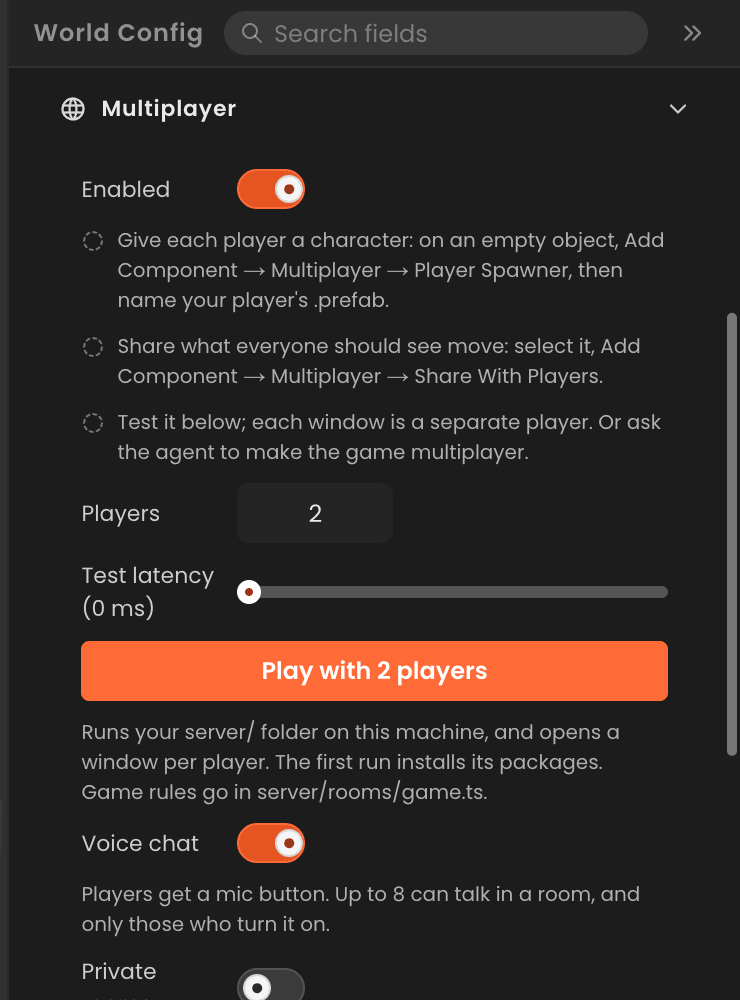
Turning it on adds a server/ folder to your project and a way to test here. A game with nothing shared still plays as it did.
The setup checklist
With multiplayer on, the section shows a short checklist that ticks itself off as your scene is ready.
In a 3D project:
- Give each player a character: on an empty object, Add Component → Multiplayer → Player Spawner, then name your player's
.prefab. - Share what everyone should see move: select it, then Add Component → Multiplayer → Share With Players.
- Test it: each test window is a separate player. Or ask the agent to make the game multiplayer.
In an XR project:
- Players see each other's head and hands already. To change how they look, or to line players up in one room, select the XR Rig and add Add Component → Multiplayer → XR Multiplayer (Players and Colocation).
- Share what players pick up: select it, add Share With Players, and also XR → XR Interactable.
- Test it: each window is a player without a headset; drag to look, WASD to move.
The components have their own settings in the inspector. See Multiplayer: Components.
Test with several players
Below the checklist:
- Players: how many test players, 1 to 6.
- Test latency: add up to 400 ms of delay, to see how the game feels on a slow connection.
- Play with N players starts the preview and opens one window per player.
Each window is a different player, with its own storage. The first window to join is the host. A test server runs your server/ folder on your computer (the first run installs its packages); Stop the server stops it. Game rules go in server/rooms/game.ts.
Local tests always use the server on your computer, never a live one, so you can't land in a room with real players.
Let the agent test it
The agent can open its own hidden player windows, drive each one, and read the room's state, to check that what one player does shows up for the others.
Rooms and room codes
By default everyone plays in one open room. Switch Private rooms on to let groups of friends play in rooms of their own:
- Players with the same room code play together; anyone without one plays in the open room.
- In 3D games, players get a Room panel in the game: a code to share, an invite link, Join and New room.
- VR games pick rooms in a menu inside the game rather than on the entry page. Ask the agent for a room menu.
Changing rooms happens live, without reloading the game (which matters in a headset, where a reload would end the VR session). See Multiplayer for the room API scripts can use.
Voice chat
Switch Voice chat on and players get a mic button. Up to 8 people can talk in a room, and only those who turn their mic on are heard. Voice on Relu's servers needs a paid plan; it still works in local tests and on your own server. See Multiplayer: Voice chat.
Where a published game runs
Under Published games run on:
- Relu: nothing to set up. Your plan sets how many players can be online in the game at once; past that, new players see that it's full. Relu's servers run the standard room, so if your
game.tshas its own rules, the section warns you that published games won't use them. - My server: run the game's server on a machine of your own. Set up your server opens a guided setup (Server, Domain, Install, Connect, Upload, Publish) that takes about 15 minutes, once. After that, Send the game's server again uploads a new version.
Only published builds connect to Relu's servers. Preview and test windows stay on your computer.
Mixed reality: players in one room
In a mixed-reality project, the XR Multiplayer component can line up players who share a physical room: each touches the same two real points, such as two table corners, so shared objects sit in the same place for everyone. When you create an XR project, the mixed-reality choice Shared table for players in one room sets this up for you. Lining up needs two headsets. See Colocation.
Related
- Multiplayer (components, scripting, server rules)
- Colocation
- Preview and Test
- Publishing