

World Config
World Config holds the settings that apply to your whole scene rather than one object: the sky, lighting, fog, gravity, post effects, multiplayer and more. It lives in the inspector.
Opening World Config
Do either of these:
- Click empty space in the viewport, or press
Esc, so nothing is selected. - Click the globe button at the top of Object Config.
The inspector's title changes to World Config. Select an object again to go back to Object Config.
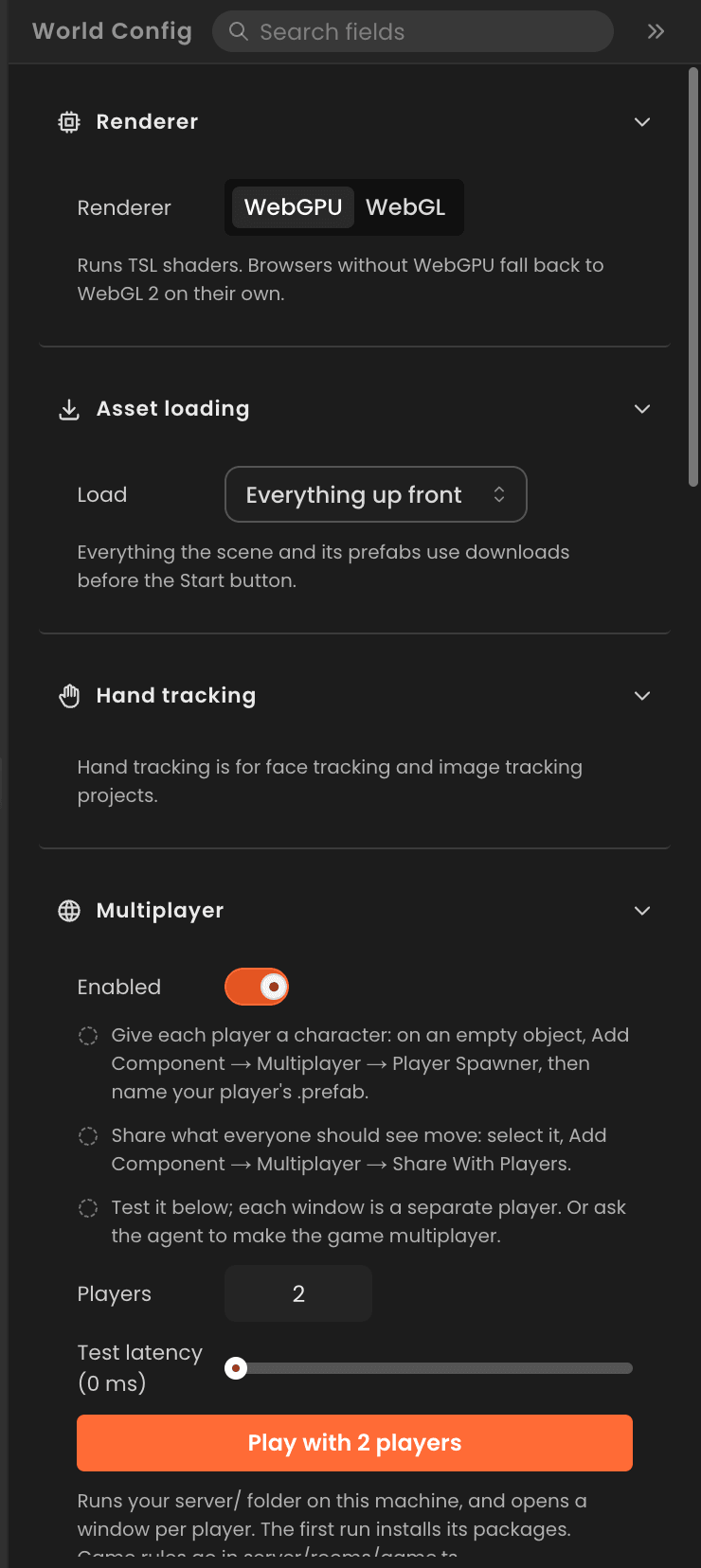
Sections
Renderer
Choose WebGPU or WebGL for how your scene is drawn. WebGPU is newer and faster on computers and phones that support it. XR and AR projects always render with WebGL. You can't change the renderer while a prefab is open in Prefab Mode.
Asset loading
What downloads before Start, for games where the player presses Start:
- Ask the player: the player chooses.
- Everything up front: the whole game downloads before Start.
- Scene, rest on demand: what the scene needs downloads first; other files download when the game asks for them.
XR and AR projects load everything up front. See Loading assets on demand for the scripting side.
Hand tracking
For face-tracking and image-tracking projects. Run sets when hand tracking runs (Auto, On, Off) and Follow sets how many hands it follows (1 hand, 2 hands). See Hand tracking.
Multiplayer
Turns multiplayer on for 3D and XR projects, and sets the number of players, voice chat, private rooms and which server runs your rooms (Relu or My server).
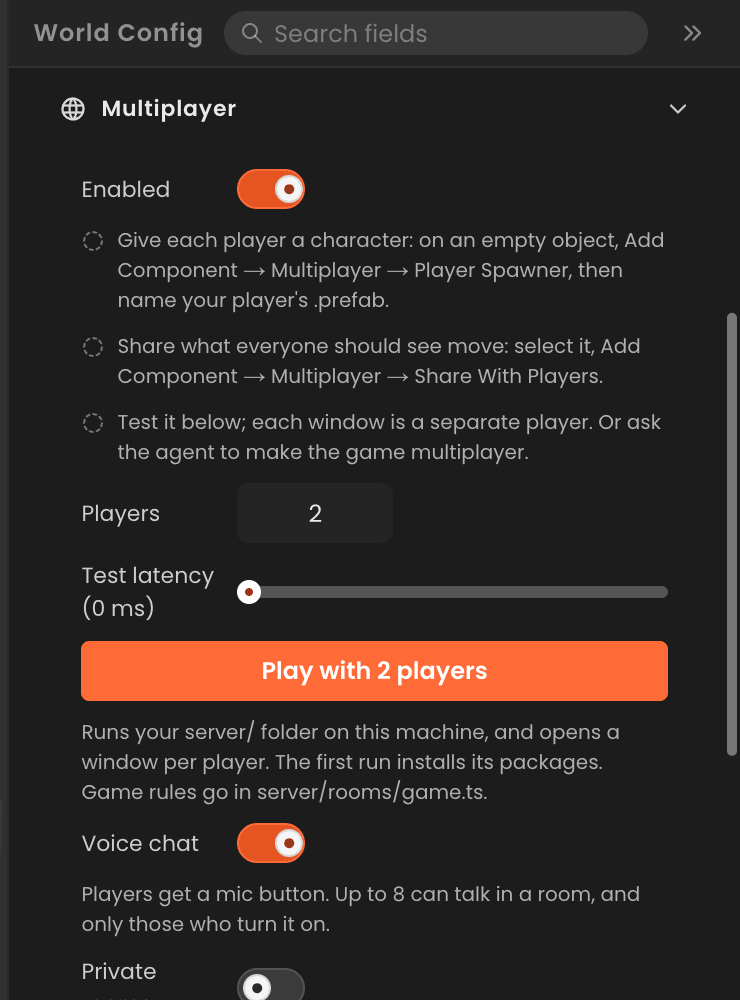
See Multiplayer for how to set it up and test with several players.
Grid
Show Grid turns the editor's ground grid on or off. The grid is never in your game.
Fog
Fades distant things into a colour.
| Field | What it does |
|---|---|
| Type | None, Linear or Exponential. |
| Color | The fog colour. |
| Near / Far | Where linear fog starts and where it's solid. |
| Density | How thick exponential fog is. |
Skybox
The background behind your scene. Type is one of:
- None
- Color: one flat colour.
- Gradient: three colours blended together. Effect sets the shape: Linear, Radial or Angular.
- Image: a picture. Projection is Flat backdrop or 360° panorama.
Lighting
Lights the whole scene from an environment map, a 360° picture of light.
| Field | What it does |
|---|---|
| Env map | Drop an .hdr, .exr or image from Assets here. |
| Intensity | How strong the environment light is. |
| Rotation ° | Turns the environment around. |
| Background | Also shows the environment map as the background, with Blur and Brightness. |
| Tone map | How bright colours are fitted to the screen: None, ACES (cinematic), AgX or Neutral. |
| Exposure | Overall brightness. |
Gravity
X, Y and Z set the direction and strength of gravity for physics objects. The default is straight down, (0, -9.81, 0).
Physics
Fixed Timestep (s) sets how often physics updates. The default, 0.02, is 50 times a second. Smaller values are more precise and cost more.
Post FX
Full-screen effects drawn over the finished picture. Turn each one on with its Enabled switch and open it to adjust it:
Bloom, ChromAb (chromatic aberration), DOF (depth of field), DotScreen, Glitch, HueSat (hue and saturation), Noise, Pixelate, Sepia, SMAA (smoother edges), SSAO (soft shadows in corners), ToneMap and Vignette.
Post effects cost performance, especially on phones and headsets. See Postprocessing for what each field does.