

Projects
After signing in for the first time, the editor needs to know where to store your projects on disk. From the dashboard you can then create new projects or open existing ones.
Choose a default projects folder
The first time you open the dashboard you'll see a prompt to pick a projects folder. This is the directory where every project you create or open lives.
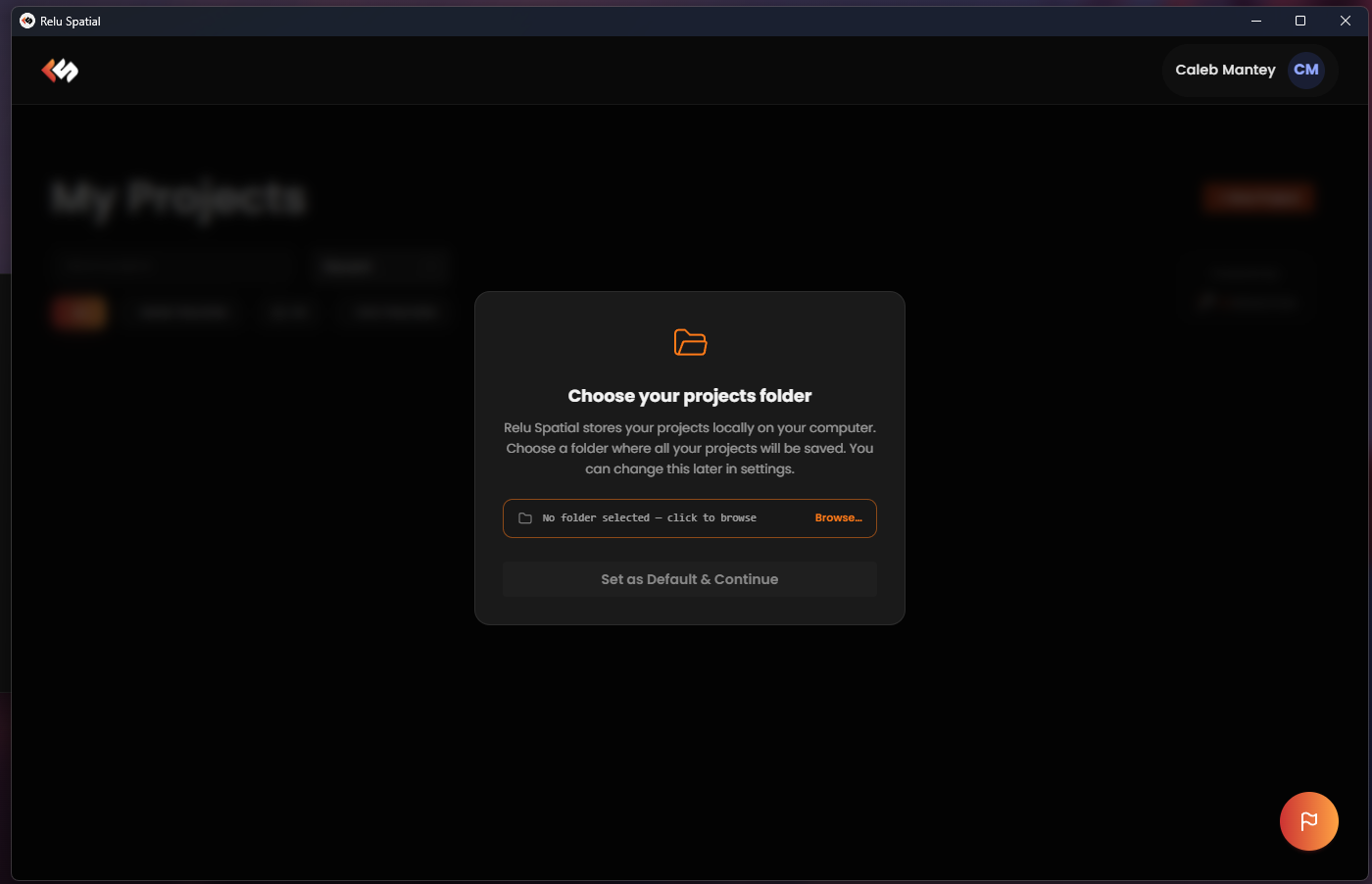
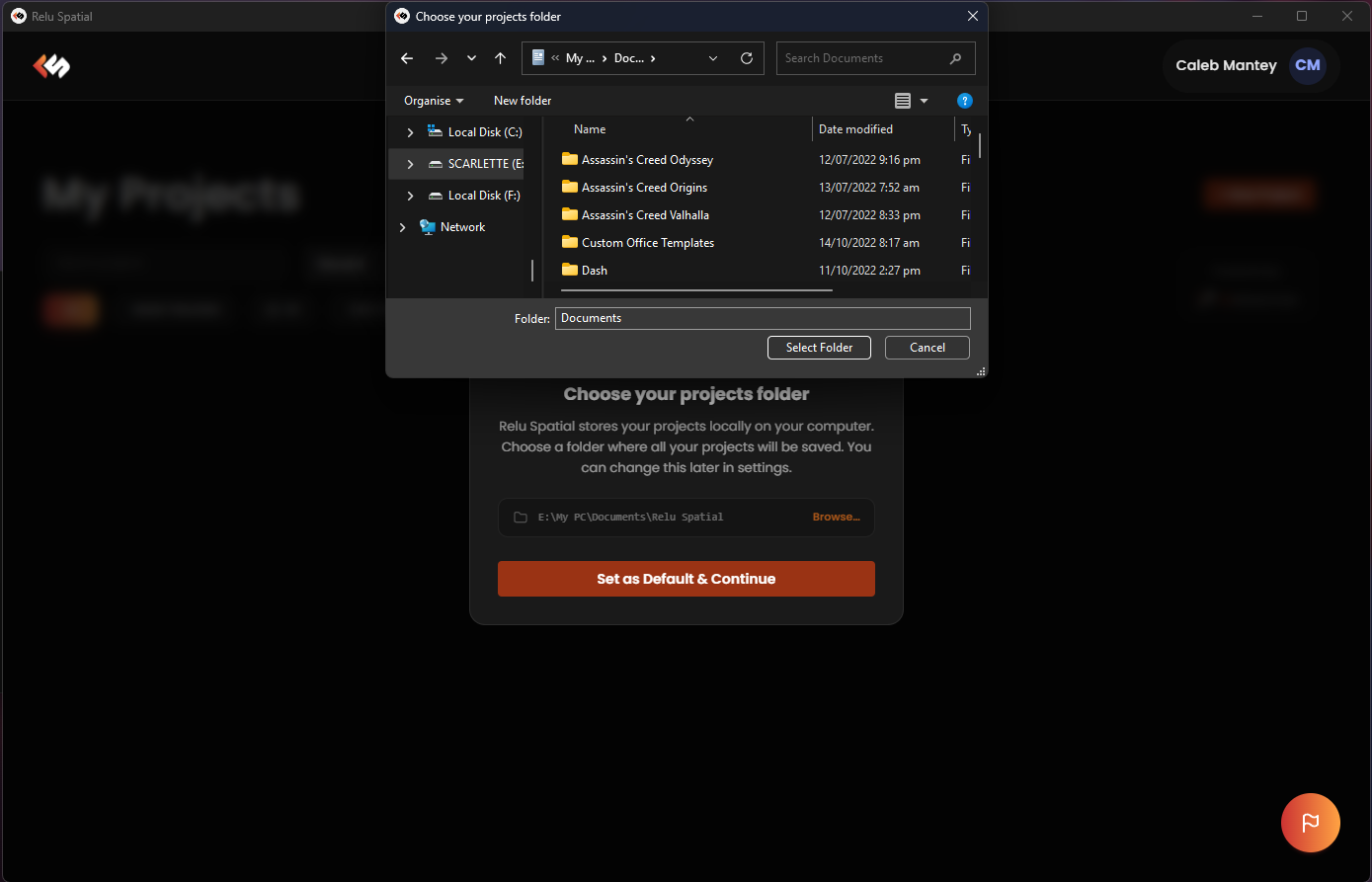
- Click Select folder.
- Pick a location in your file system: for example
~/Documents/ReluSpatialon macOS / Linux, orDocuments\ReluSpatialon Windows. - The editor remembers this path for every future session.
You can change it later from Settings → Projects path.
Project files on disk
Each project is a folder under your projects path.
TIP
The assets/ folder is yours to organize. Drop models, images, audio, video, and scripts in here directly they appear in the editor's asset browser automatically.
Create a new project
From the dashboard, click on Project type (see Project types for the differences) card to create a new project.
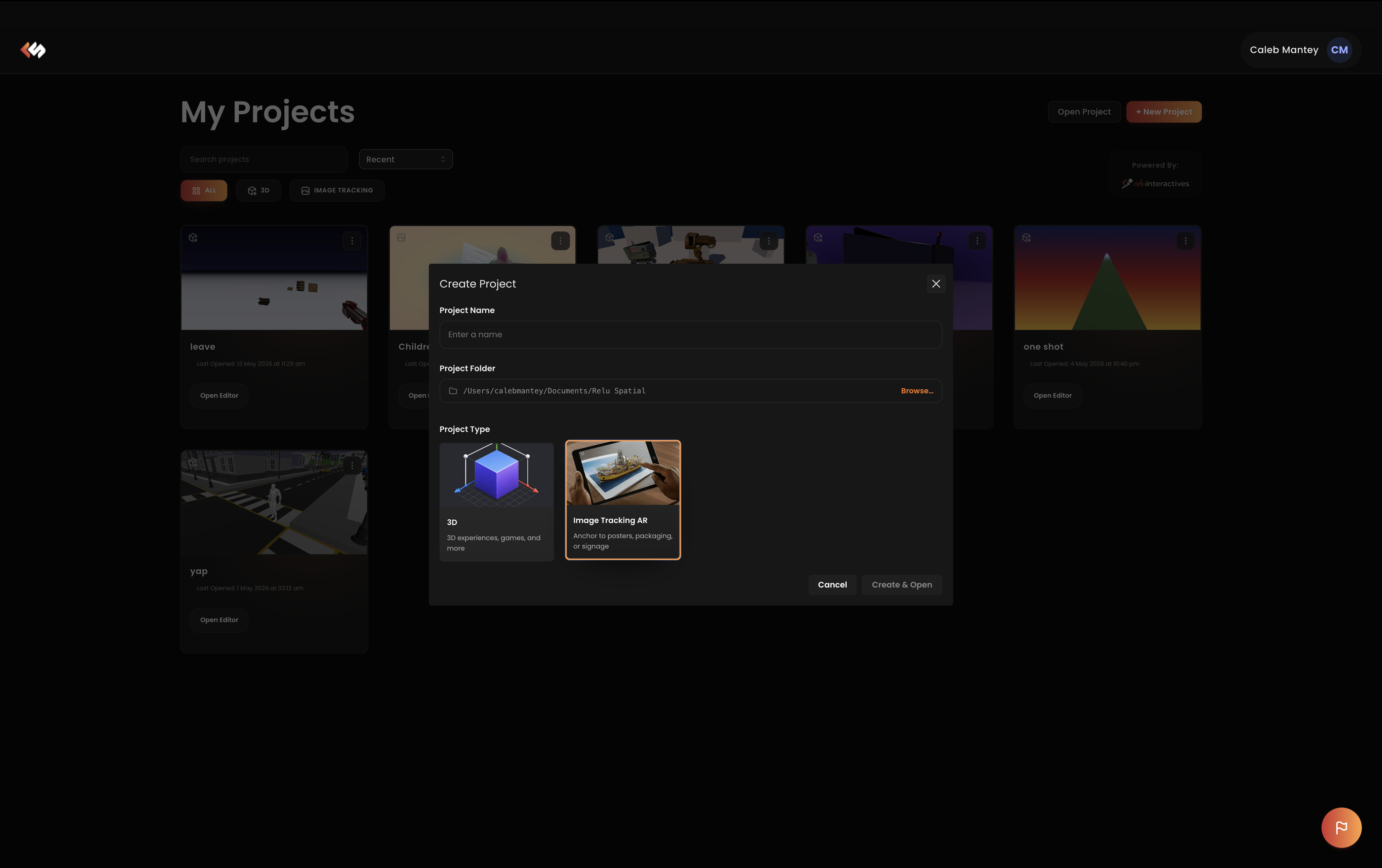
You'll be asked for:
- Project name: used to derive the folder slug.
Click Create & Open. The editor scaffolds the project, opens it, and seeds the default scene for the chosen project type.
Open an existing project
The dashboard lists every project found in your projects folder.
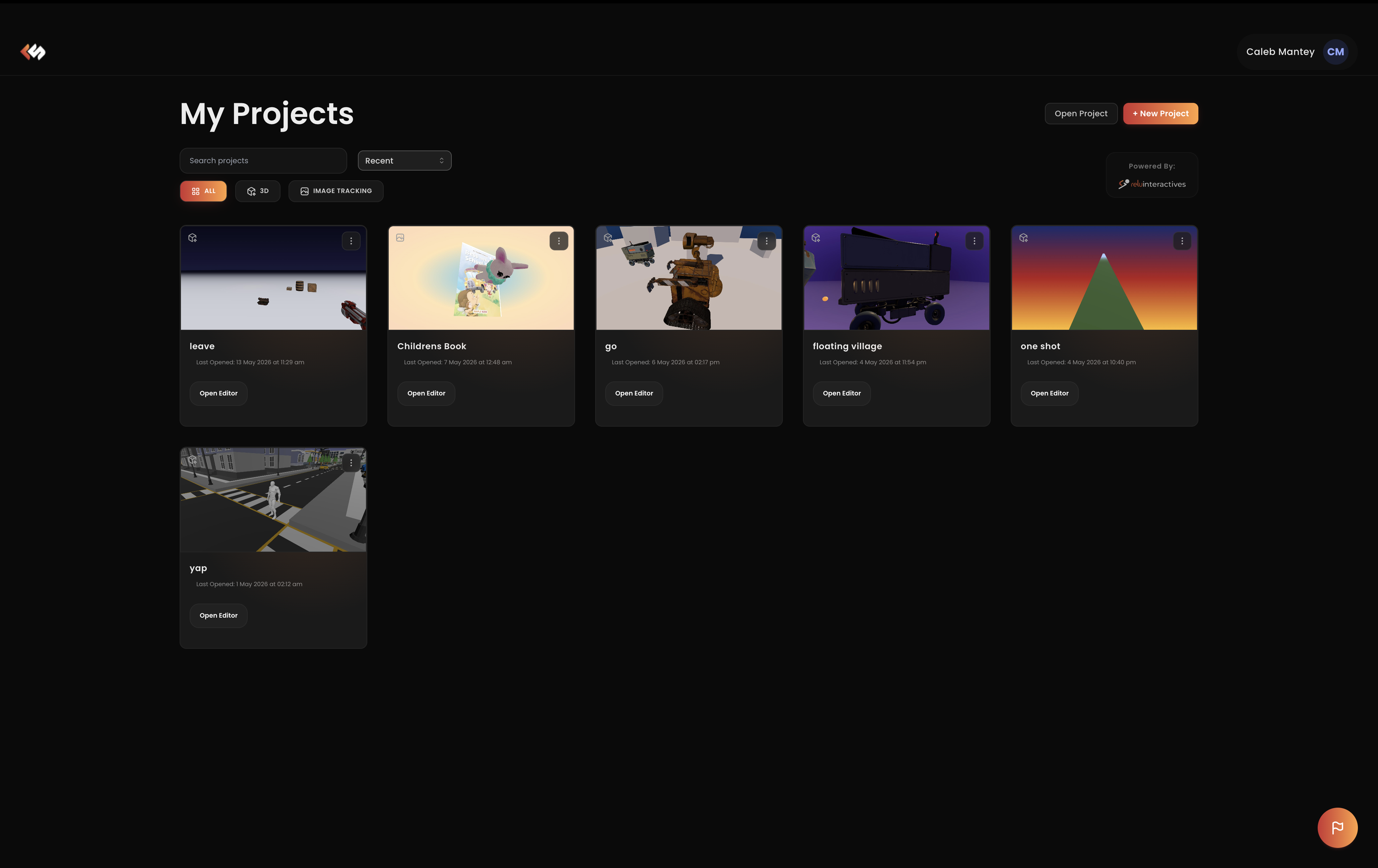
- Click a card to open the project in the editor.
- Click card options: for actions: rename, duplicate, reveal in finder/explorer, delete.
Next
- Project types: pick the right type for your experience.
- Understanding the editor: what each region of the editor window does.