

AI Agent
The AI Agent is an intelligent assistant integrated into the editor that helps you build scenes, write scripts, troubleshoot issues, and automate workflows through natural language conversation.
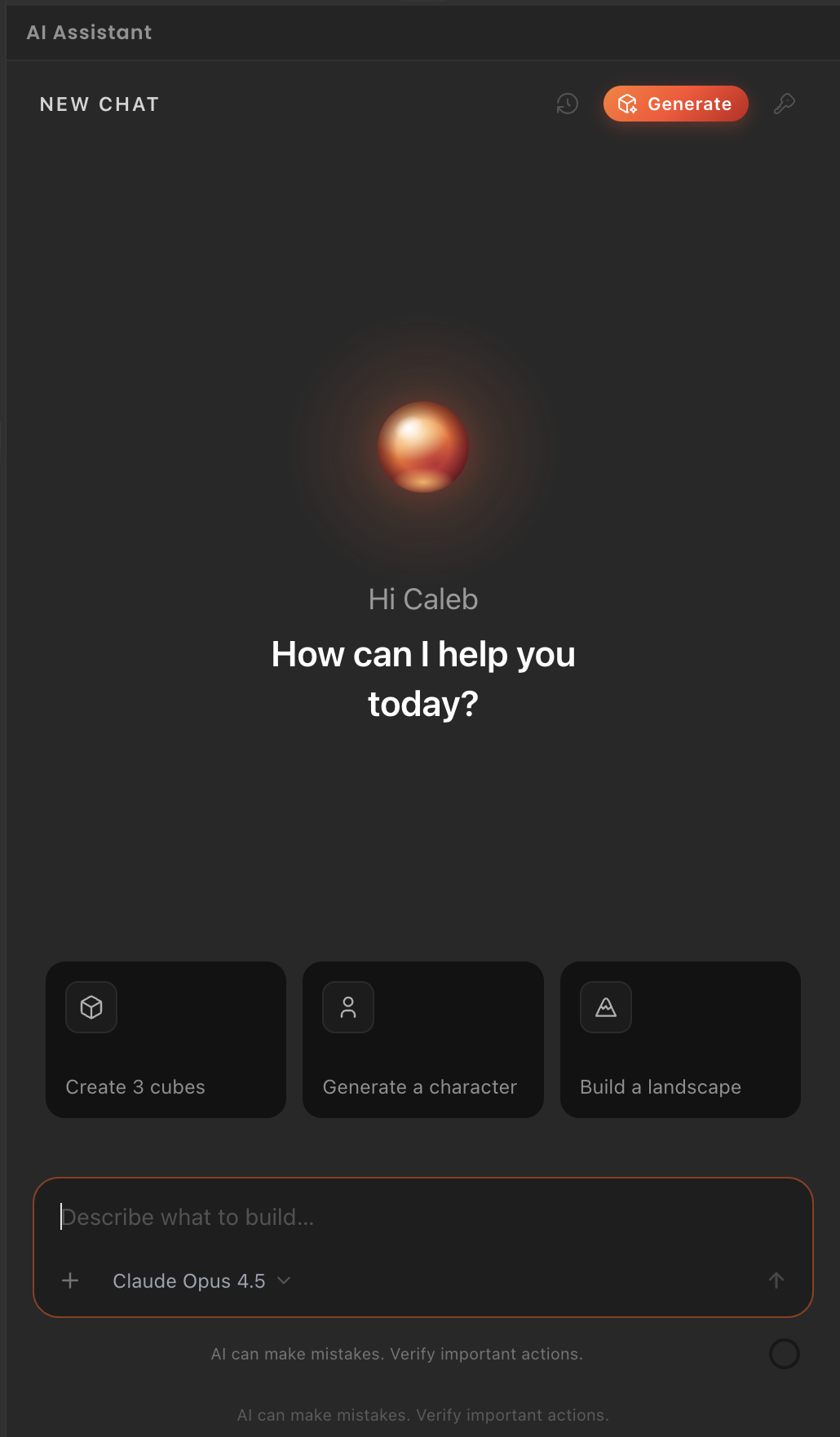
Opening the AI Agent
The agent shows right below the inspector on the right side panel.
What the AI Agent can do
Scene Creation and Modification
Ask the agent to create, modify, or organize scene content:
- "Add a directional light pointing down at 45 degrees"
- "Create a row of 5 cubes spaced 2 meters apart"
- "Move the camera to look at the player spawn point"
- "Add physics to all meshes in the 'obstacles' folder"
The agent understands spatial relationships, entity hierarchies, and component configurations, executing changes directly in your scene.
Script Generation and Editing
Generate or modify Behaviour scripts:
- "Write a script that makes this cube rotate continuously"
- "Add an onGrab handler that changes the material color"
- "Fix the syntax error in PlayerController.ts"
- "Convert this loop to use entity queries instead"
Scripts are created in your assets/ folder and can be attached immediately or edited further.
Component Configuration
Get help configuring components on selected entities:
- "Set up this model with a dynamic rigidbody"
- "Configure this light as a warm spotlight with shadows"
- "Make this object grabbable in VR with two-hand support"
The agent reads the current selection and applies settings contextually.
Workflow Automation
Automate repetitive tasks:
- "Batch rename all entities starting with 'Prop_' to remove the prefix"
- "Export all animation clips as separate files"
- "Find all entities with missing material assignments"
- "Create a prefab from each top-level entity in the hierarchy"
Learning and Documentation
Ask questions about the editor, components, or scripting APIs:
- "How do I make an object teleportable in VR?"
- "What's the difference between physical and distance grab?"
- "Show me examples of hand pose detection"
- "Explain the XR Rig tracking origin options"
The agent references the official documentation and provides examples.
Using the AI Agent
Chat Interface
The agent uses a conversation-based interface:
- Type your request in the input box at the bottom
- Press Enter or click Send to submit
- Review the agent's response - it may show code, apply changes, or ask clarifying questions
- Confirm or refine - approve proposed changes or provide additional context
Contextual Awareness
The agent is aware of:
- Current selection in the hierarchy or viewport
- Project type (3D, VR, Image Tracking, etc.)
- Open files and active scripts
- Recent actions and undo history
- Available assets in your project folder
Refer to entities by name or say "this entity" / "the selected object" when you have something selected.
Approval and Safety
For actions that modify your scene or scripts, the agent:
- Shows a preview of what will change
- Asks for confirmation before applying destructive operations
- Works with undo/redo - you can revert agent actions
- Validates generated code before creating files
Turn on Auto-approve safe actions in settings to skip confirmations for simple tasks like renaming or adding entities.
Example Workflows
Building a VR Interaction
You: "Make this object grabbable with both hands"
Agent: Adds XR Interactable component, sets hands to "two",
       and configures attach points. "Done! Users can now grab
       with both hands. Want me to add throw physics?"

You: "Yes, and make it teleportable"
Agent: Adds Physics component with dynamic rigidbody,
       and VR Teleport Area to the floor. "Ready to test!"
Batch Asset Processing
You: "Import all FBX files from my Desktop and place them in a grid"
Agent: Copies files to assets/, spawns model entities, arranges in
       5×5 grid with 3m spacing. "Imported 12 models."
Script Debugging
You: "Why isn't my onGrab handler firing?"
Agent: Checks script, finds missing XR Interactable component.
       "The entity needs an XR Interactable component with
       grabbable: true. Want me to add it?"

You: "Yes"
Agent: Adds component and validates the fix.
Learning Workflow
You: "How do I set up teleport locomotion?"
Agent: Explains XR Rig locomotion modes, shows code example for
       custom teleport areas, and offers to configure the current scene.
Tips
Be Specific with Spatial References
- Good: "Move the camera 5 meters behind the player entity"
- Unclear: "Put the camera somewhere behind"
The agent understands coordinates, directions (up/down/left/right/forward/back), and entity names.
Use Selection for Context
Select the target entity before asking for modifications:
- Select a mesh → "Add a point light above this"
- Select multiple entities → "Parent these under a new empty"
Iterate Incrementally
For complex tasks, work step-by-step:
- "Create a basic VR scene" → agent sets up rig, lighting, and floor
- "Add a grabbable cube" → agent spawns and configures it
- "Make it glow when grabbed" → agent writes the script
Ask for Explanations
Prefix with "explain" or "why" to learn instead of execute:
- "Explain how animation state machines work"
- "Why is my physics object falling through the floor?"
Provide Examples
Show code or describe behavior:
- "Write a script like PlayerController but for VR"
- "Create an animation that's similar to the idle clip but faster"
Settings and Preferences
Configure the AI Agent behavior in Editor → Preferences → AI Agent:
- Model selection - choose which AI model powers the assistant
- Auto-approve safe actions - skip confirmations for non-destructive changes
- Context depth - how much project history the agent considers
- Code style - preferred formatting and conventions for generated scripts
- Verbosity - concise responses vs. detailed explanations
Privacy and Data
The AI Agent:
- Does not send scene content to external servers unless explicitly sharing for collaboration
- Keeps conversation history locally in your project folder
- Can be disabled entirely if you prefer manual workflows
- Respects .gitignore - won't reference or modify ignored files
Check Help → Privacy Policy for full details on data handling.
Limitations
The AI Agent is a powerful assistant but has boundaries:
- Cannot undo destructive file operations - deleting assets is permanent
- May hallucinate APIs - always verify generated code against the Component Catalog
- Context window limits - very large scenes may require breaking requests into smaller tasks
- No runtime execution - the agent modifies the editor, not the running preview
When in doubt, review proposed changes before confirming.
Keyboard Shortcuts
| Action | Shortcut |
|---|---|
| Open/Close AI Agent | Configurable (default: depends on OS) |
| Send message | Enter |
| New line in message | Shift + Enter |
Related
- Custom Behaviours - scripting with the agent's help
- Component Catalog - reference for agent-generated configurations
- Toolbar - where the AI Agent toggle lives