

Browse and Templates
The dashboard's Browse mode is where you see what other people have made. Switch to it with the Browse toggle at the top of the dashboard. The rail on the left has two sections: Experiences and Project Templates.
Experiences
Experiences is the same list as Explore on the Relu Spatial website: games and experiences people have published.
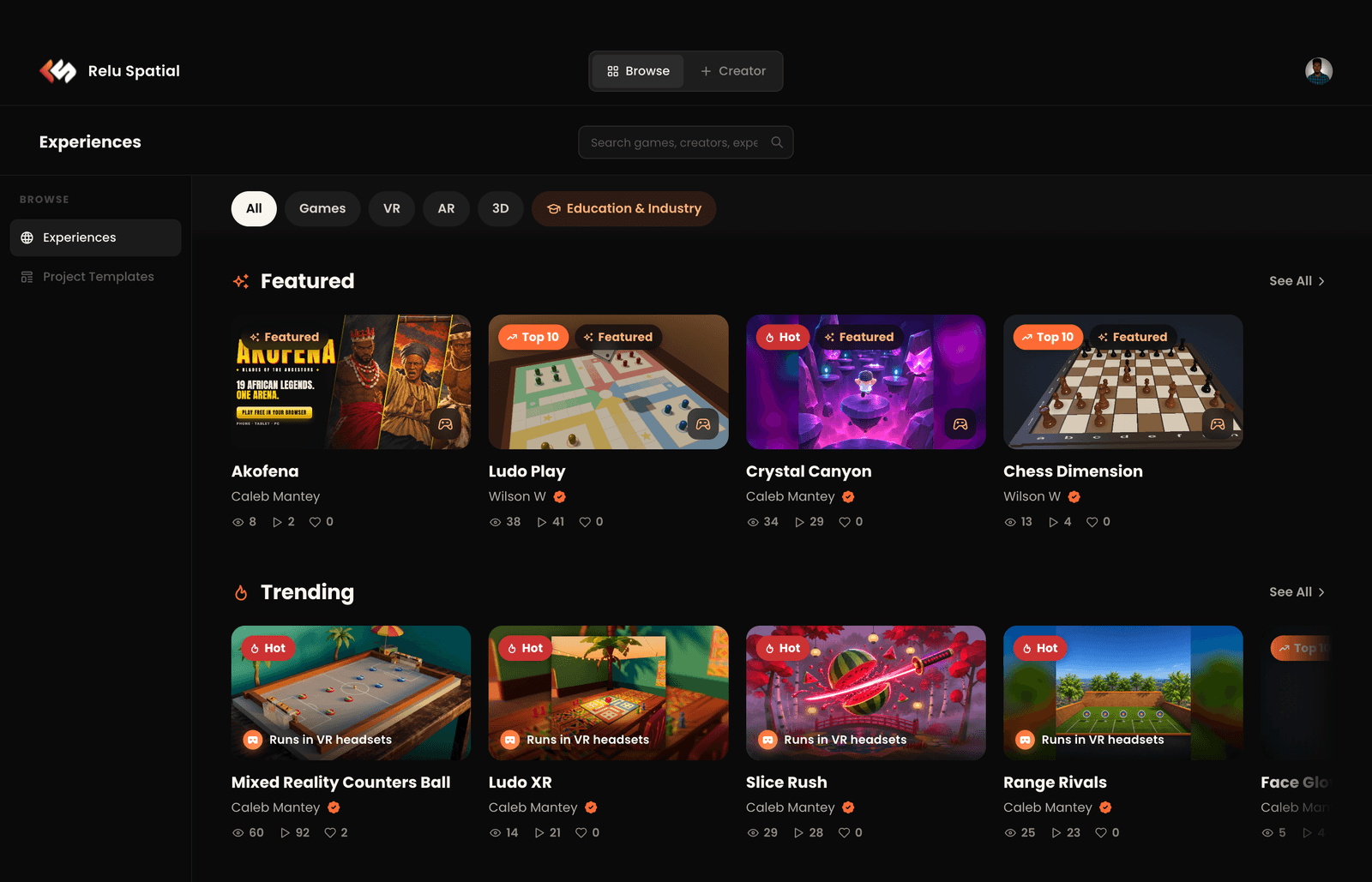
- Filter with the chips at the top: All, Games, VR, AR, 3D and Education & Industry.
- Rows such as Featured, Trending, Most played and New scroll sideways. See All opens a row as a full grid, where Sort orders it by Most played, Trending or Newest.
- Badges: Hot marks the most played this week, Top 10 the most played of all time.
- Search with the box at the top to find games, creators and experiences.
Play in the editor
Click Play on a card to play it right inside the editor, full window. Move the pointer to the top edge to show the controls, and press Esc (or the exit button) to come back.
- For an image tracking experience, Scan to Test shows a QR code. Scan it with your phone, then point the phone's camera at a tracker on your screen.
- The share button on a card shows a QR code and Copy URL, so you can open it on another device.
- Listings that weren't made with Relu Spatial show Open instead of Play, and open their page on the website.
Project Templates
Project Templates lists templates: finished projects that creators have shared as a starting point.
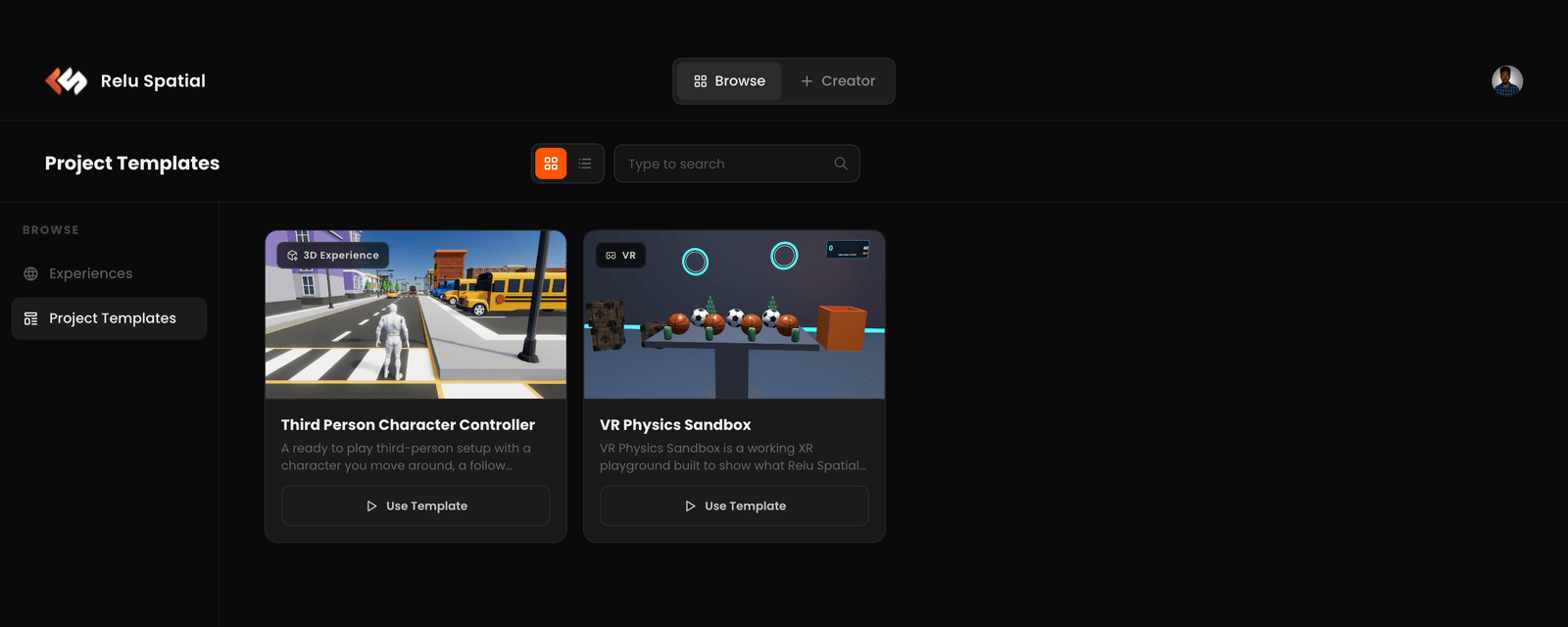
Each card shows the template's type, title and description. Use the grid or list toggle and the search box to find one.
Start from a template
- Click Use Template on a card.
- Enter a Project Name and check the Project Folder.
- Click Create Project.
The editor downloads the template into your projects folder as a new project of your own and opens it. Edit it and publish it as yours: it has no link to the template's original publish.
Convert a project to a template
If you have a creator account, you can turn one of your projects into a template.
- Open the project in the editor.
- Open the avatar menu (top right) and choose Convert Project to Template.
- Give it a Thumbnail (upload one, Use published thumbnail, or Generate with AI), a Template title and a Description.
- Click Create Template Draft. The editor packs the project, without its publish link, and uploads it as a draft.
You can close the window while it uploads: a progress button by Publish shows how it's going. The template stays hidden from the list until it's published from the admin dashboard.
If the project is already a template, converting again (Update Template) replaces the template's archive with the project as it is now. Its listing stays the same.
Related
- Projects: create and open your own projects.
- Publishing: put your own project online.