

Editing Inspector Values
Selecting an entity opens the Inspector on the right side of the editor. The inspector shows one panel per component attached to that entity, you change the entity's behavior by editing those panel values.
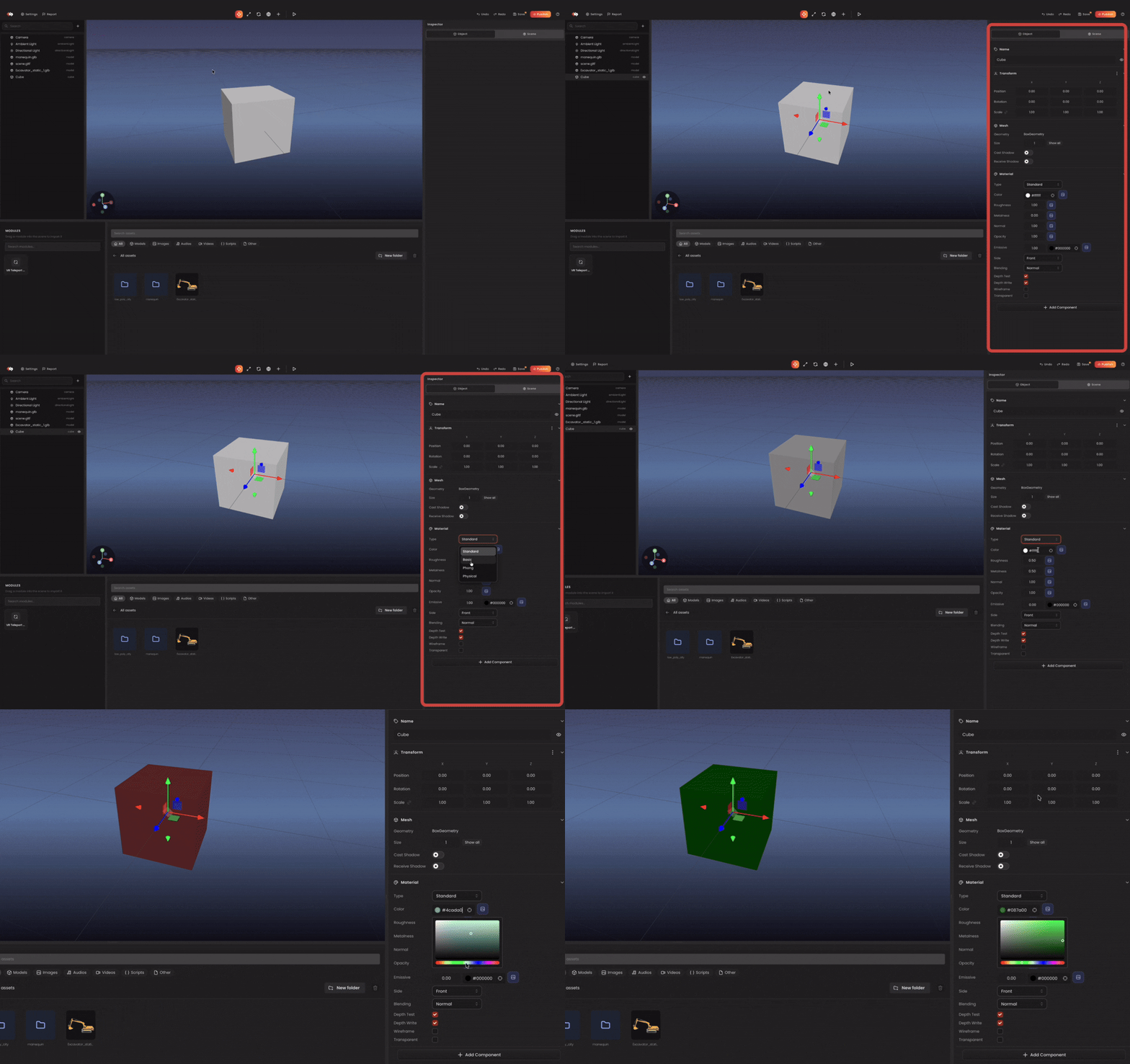
Common edits
Transform
Every entity has a Transform panel: position, rotation, and scale. Rotation is shown in degrees in the UI but stored in radians at runtime. Note: you don't need to convert.
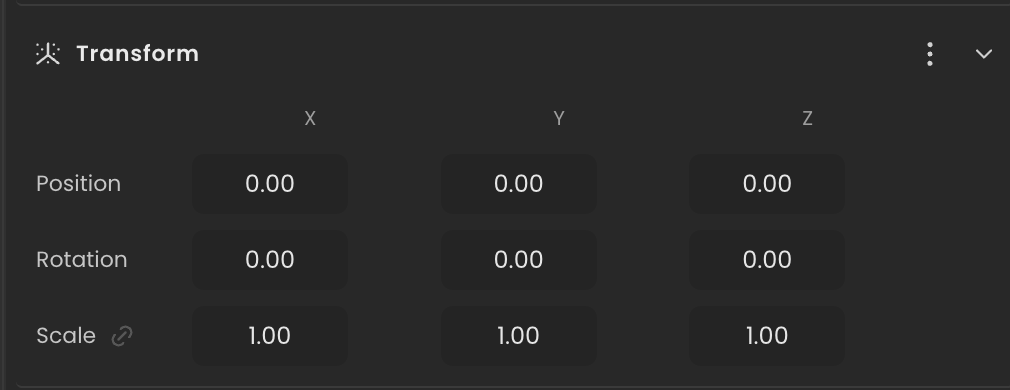
You can also drag the gizmo in the viewport instead of typing values.
Material
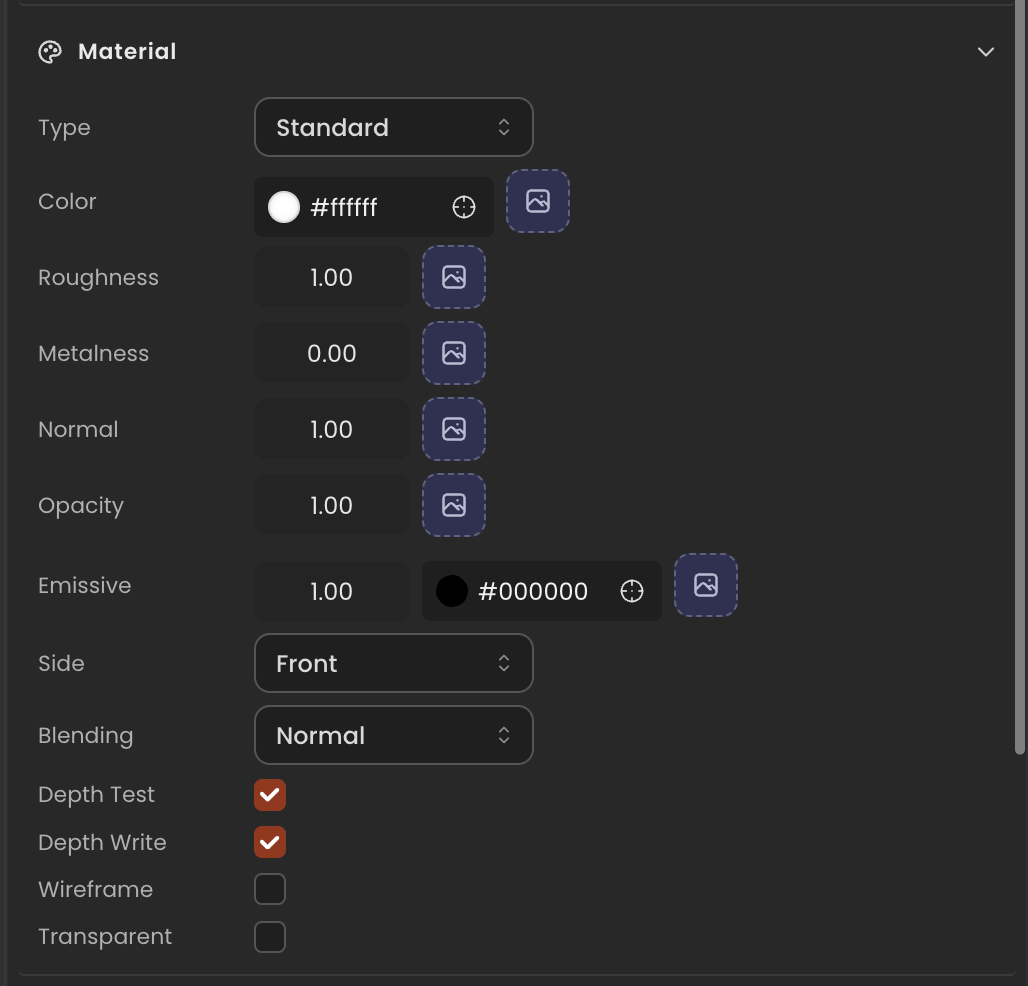
For mesh entities, the Material panel exposes:
- Type: basic, lambert, phong, standard (PBR), physical.
- Color / map: solid color or texture.
- Roughness / metalness (PBR only).
- Emissive: self-illumination color and intensity.
- Transparency / opacity / blending.
TIP
Drag a texture from the assets browser directly onto the Color map slot to assign it.
Light
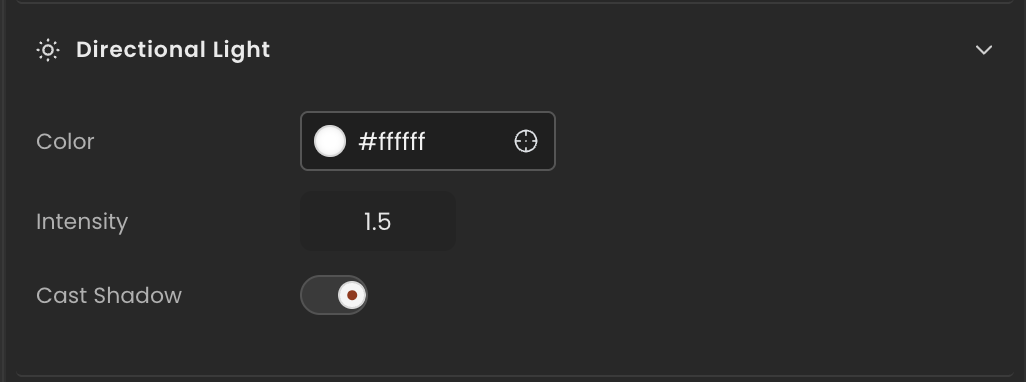
For light entities the Light panel exposes color, intensity, decay, and shadow settings.
Script
Attaching a Behaviour script adds a Script panel. Any field you declared on the behaviour class shows up here as a typed input.
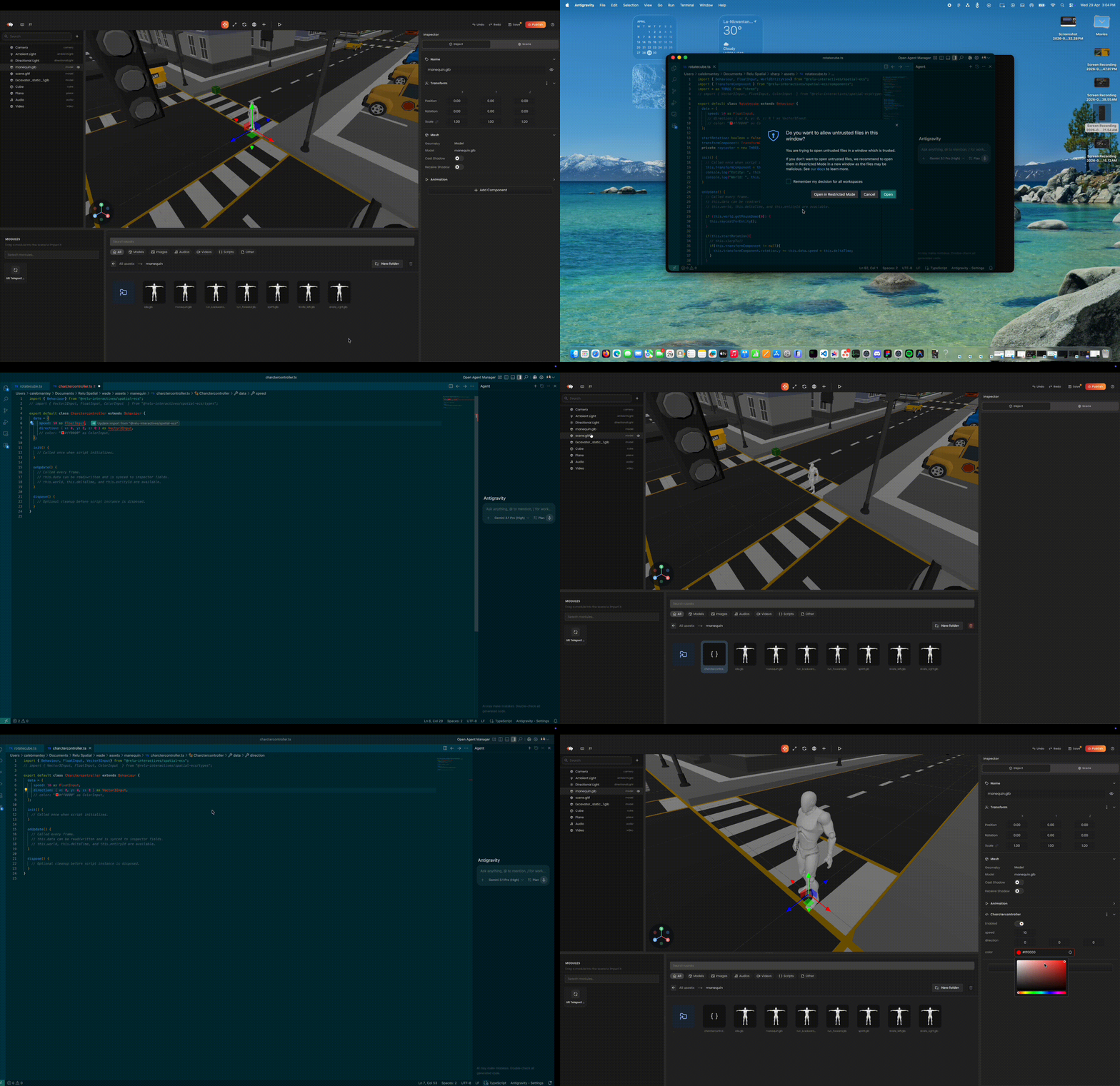
See Custom Behaviours for how to declare exposed fields.
Adding components
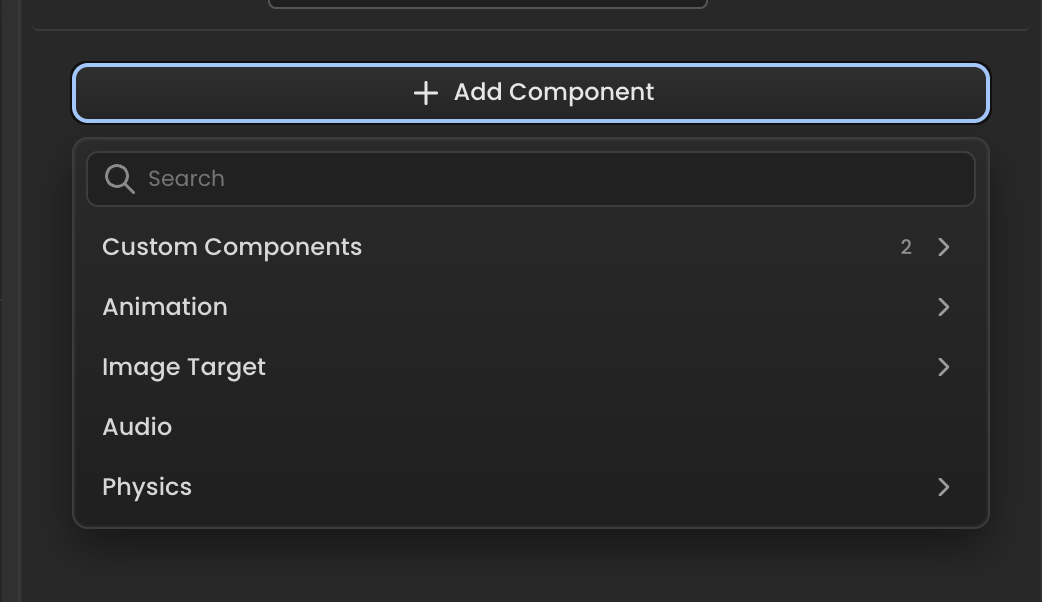
Click + Add component at the bottom of the inspector to attach additional components (collider, rigidbody, audio, animation, custom script, etc).
Undo / redo
Every inspector edit pushes onto the undo stack. Use ⌘Z / Ctrl+Z to revert and ⌘⇧Z / Ctrl+Shift+Z to redo.
Related
- Inspector reference.
- Component Catalog - every component and field.