

Preview and Test
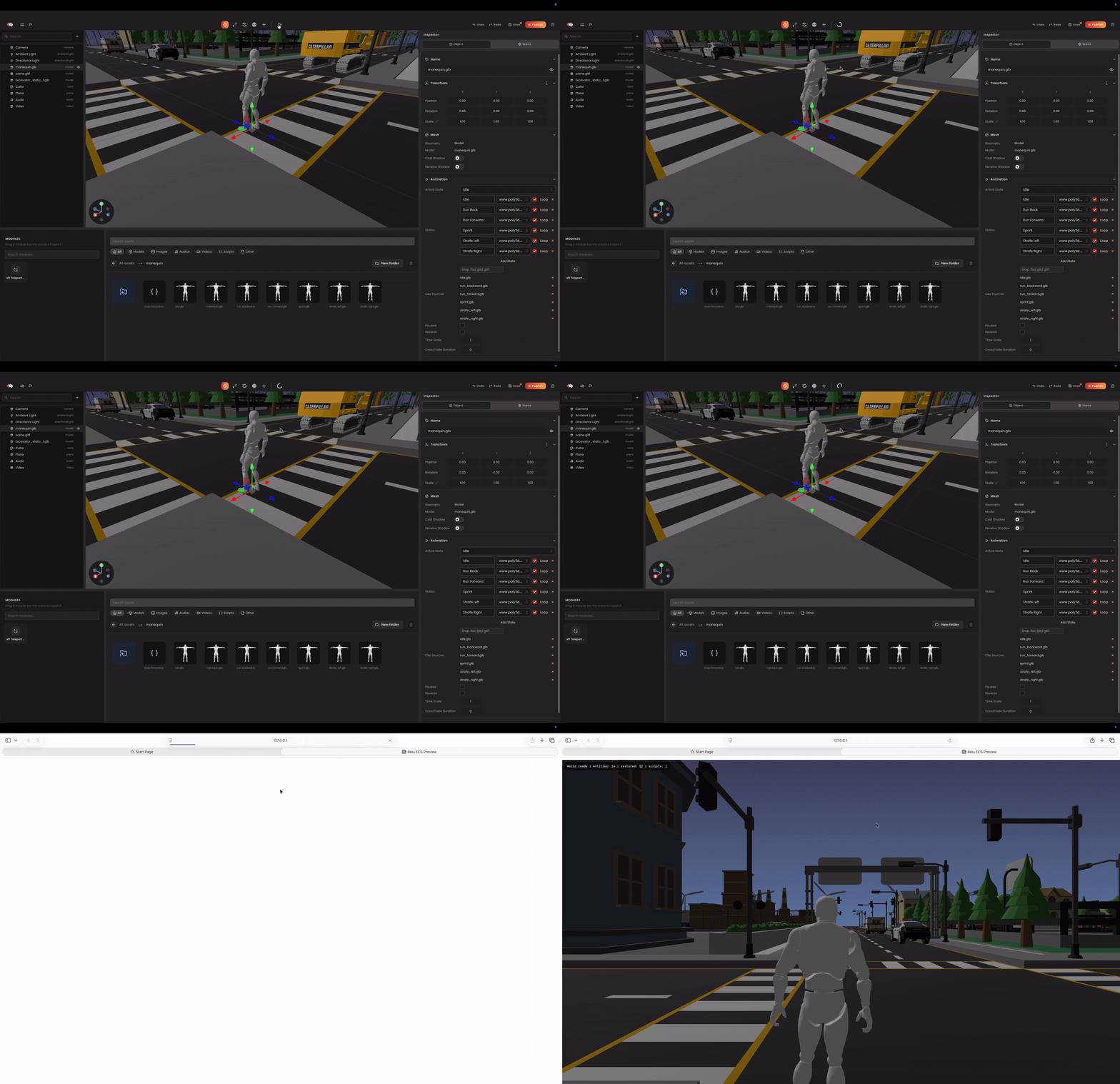
The editor ships with a runtime preview so you can test your scene without leaving the desktop app. Preview runs the same @relu-interactives/spatial-ecs engine that powers your published builds, so what you see is what users will get.
Starting a preview
Click the Preview button in the toolbar. The editor spins up a local runtime server, and opens a preview window.
What runs in preview
- All systems from the runtime including animation, physics, scripts, rendering.
- Every
Behaviourscript you've authored, compiled in real time. - Project type specific runtimes (image tracking, face tracking, WebXR sessions where applicable).
Stopping a preview
Click Preview again (it switches to Stop preview). The editor returns to authoring mode and the runtime server shuts down.
Hot-reload caveats
Preview is not a live link to the editor. To see changes:
- Edit in the editor.
- Save the project (⌘S / Ctrl+S).
- Restart preview.
TIP
Most preview iteration is fastest by keeping the preview window visible alongside the editor and restarting it after each significant change.
Testing on devices
For project types that need real device sensors (image tracking, face tracking, AR, VR) the desktop preview only goes so far. Use these strategies:
- Image / Face tracking: desktop preview can use your laptop camera. For phone camera quality, connect your phone to the same wifi network as your laptop and scan the qrcode to open it on the target device.
- WebXR (AR / VR): preview and open it on a headset or AR capable phone over your local network just like described for Image / Face tracking projects described above.
Common preview issues
| Symptom | Likely cause |
|---|---|
| Preview button does nothing | Save failed check for unsaved errors or read-only project folder. |
| Black viewport | No camera in scene, or camera's clear color matches scene fog. |
| Scripts don't run | Compile error check the editor footer for compile output. |
| Image targets don't track | Targets weren't recompiled after upload. Open the compile modal and re-run. |
Next
You're done with Getting Started. Continue with:
- Concepts - how the ECS runtime is organized.
- Custom Behaviours - write scripts.
- Component Catalog - full component reference.
- World API - query and mutate the runtime from scripts.