

Creating Objects
Once your scene is open, you can populate it from three places.
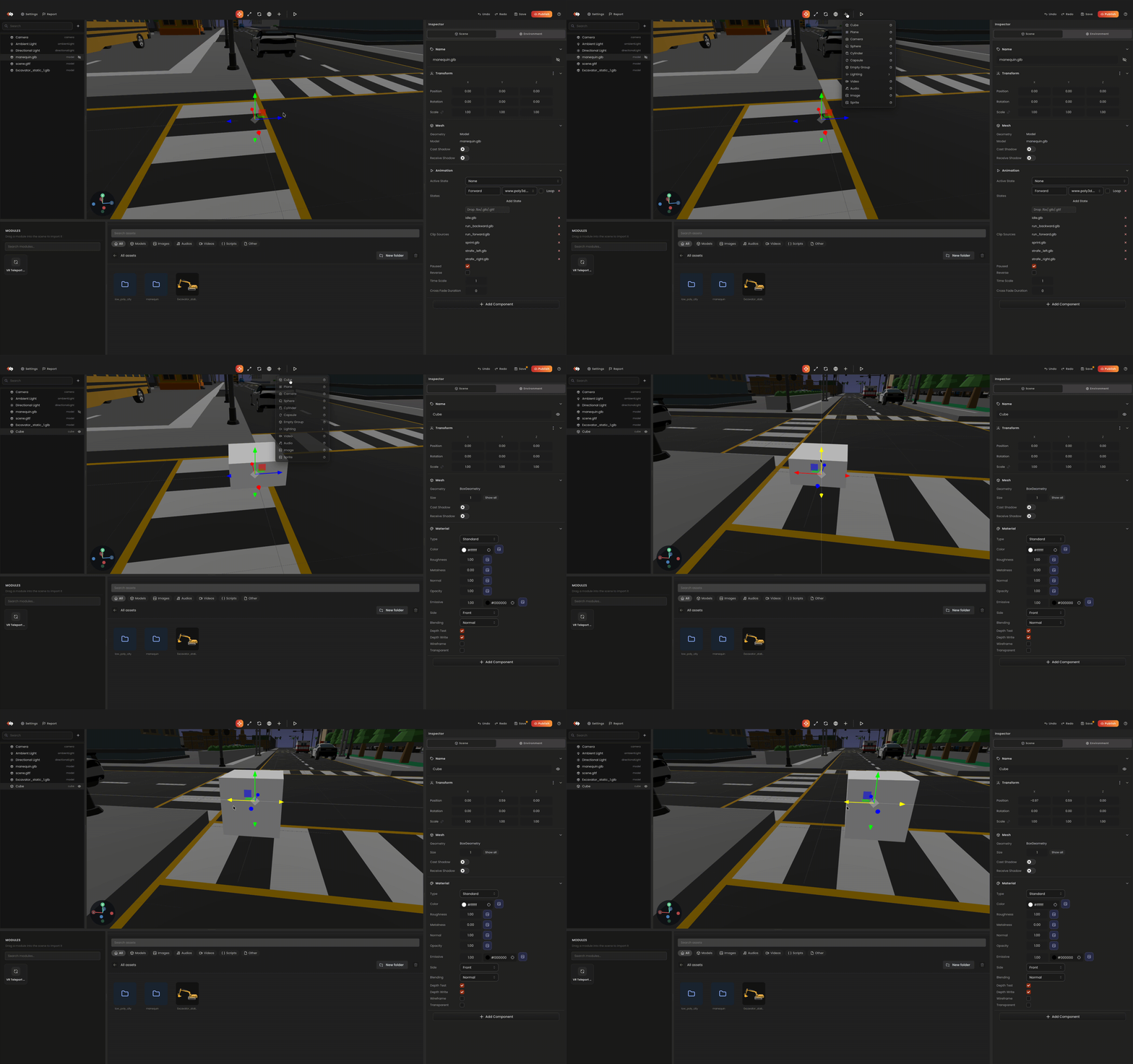
1. From the toolbar
Click the + button in the toolbar. A menu lists every spawnable entity kind:
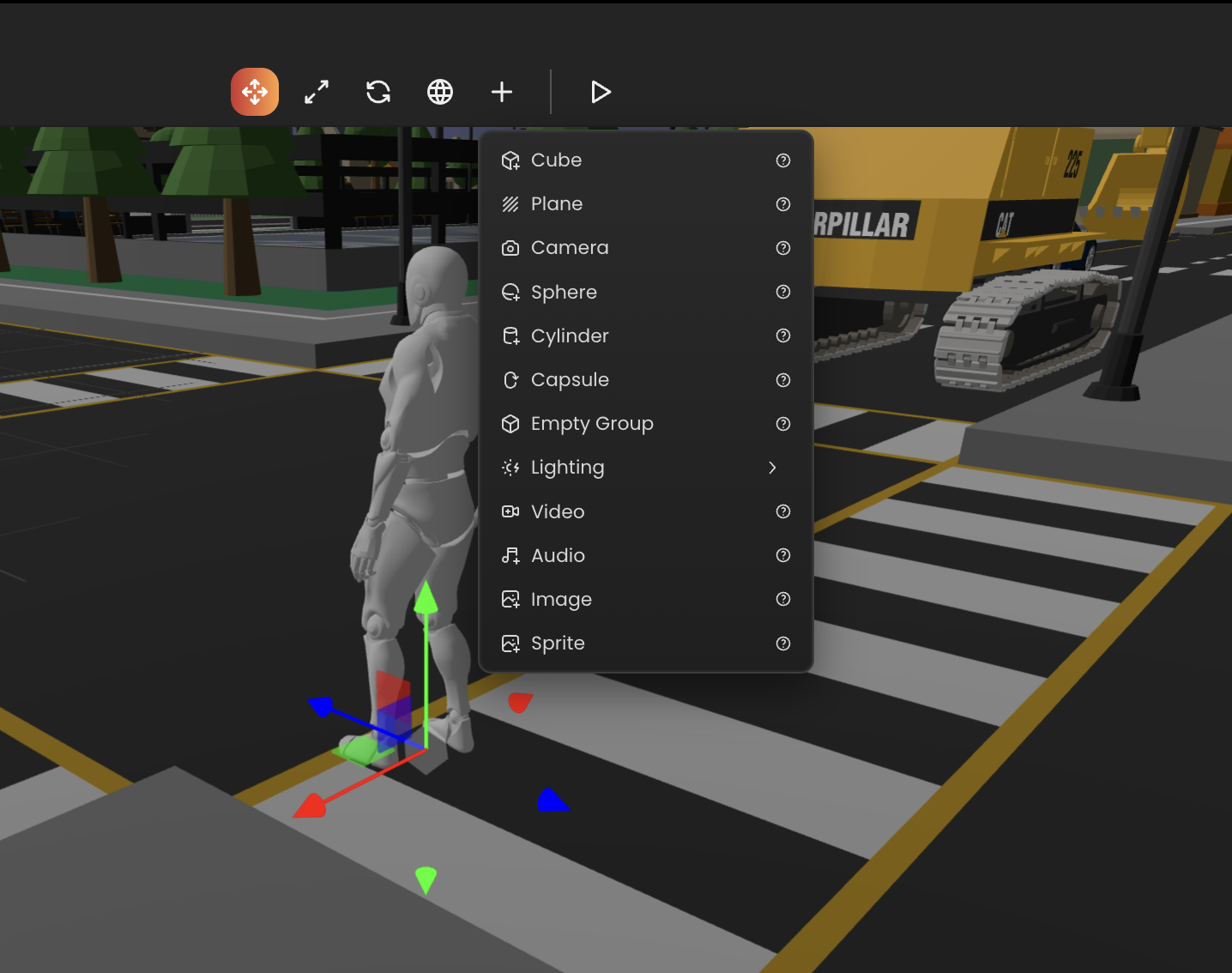
- Primitives: cube, sphere, plane, cone, cylinder, torus.
- Lights: directional, point, spot, ambient.
- Cameras: perspective, orthographic.
- Anchors: image target, face anchor, geo anchor (per project type).
- Empty: a transform-only entity used as a parent group.
Pick a kind. The editor spawns the entity at the world origin (or as a child of the current selection if it's an anchor type).
2. From the hierarchy
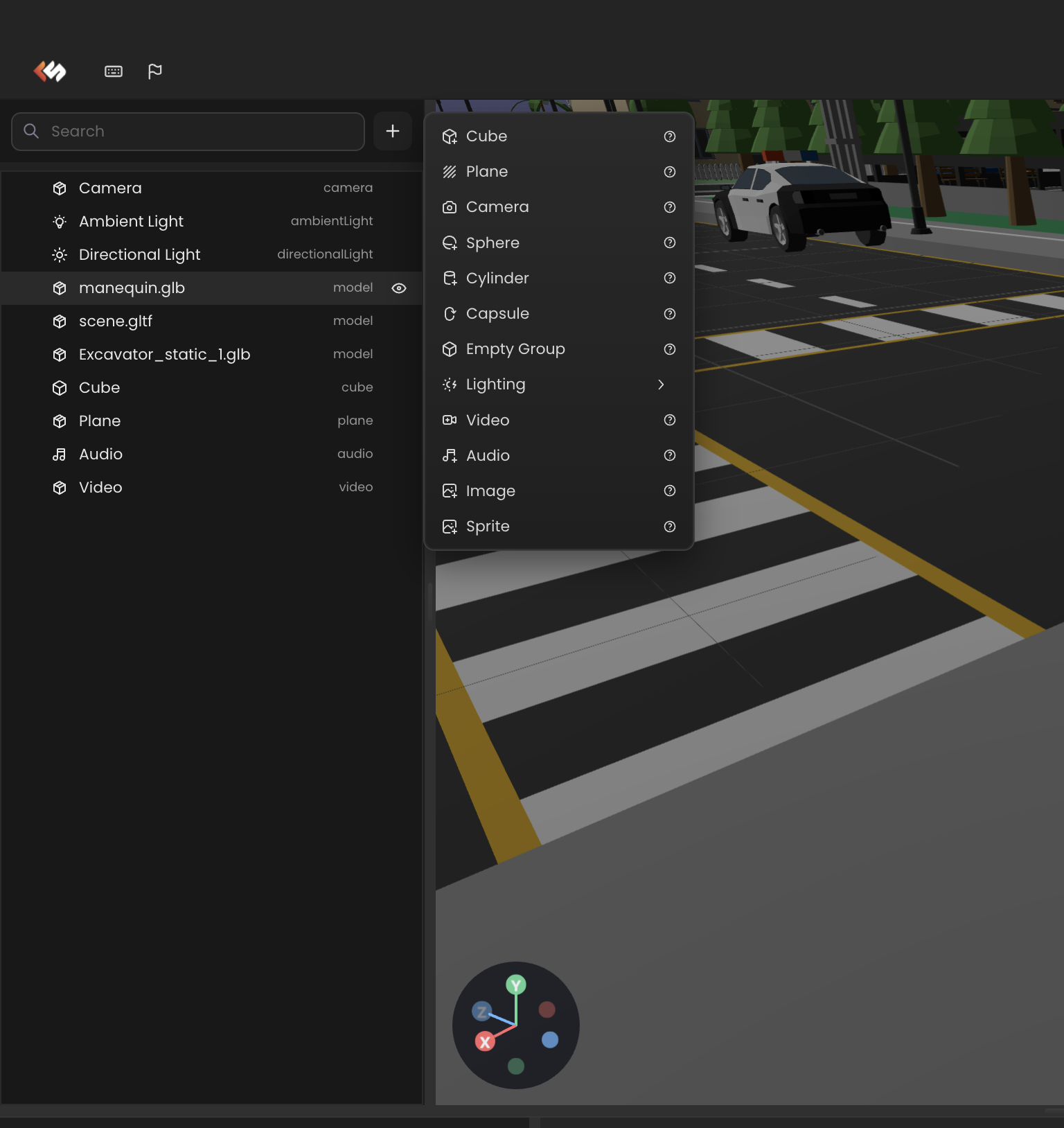
The hierarchy panel has its own + button that opens the same spawn menu.
3. From the assets browser
Drag any asset from the assets browser into the viewport or hierarchy:
.glb/.gltf→ spawns aModelentity..png/.jpg/.webp→ spawns aSpriteorImageentity (or sets it as a material texture if dropped on a mesh)..mp3/.wav→ spawns anAudioentity..mp4→ spawns aVideoentity.- Behaviour script → attaches the script to the drop target.
Selecting and arranging
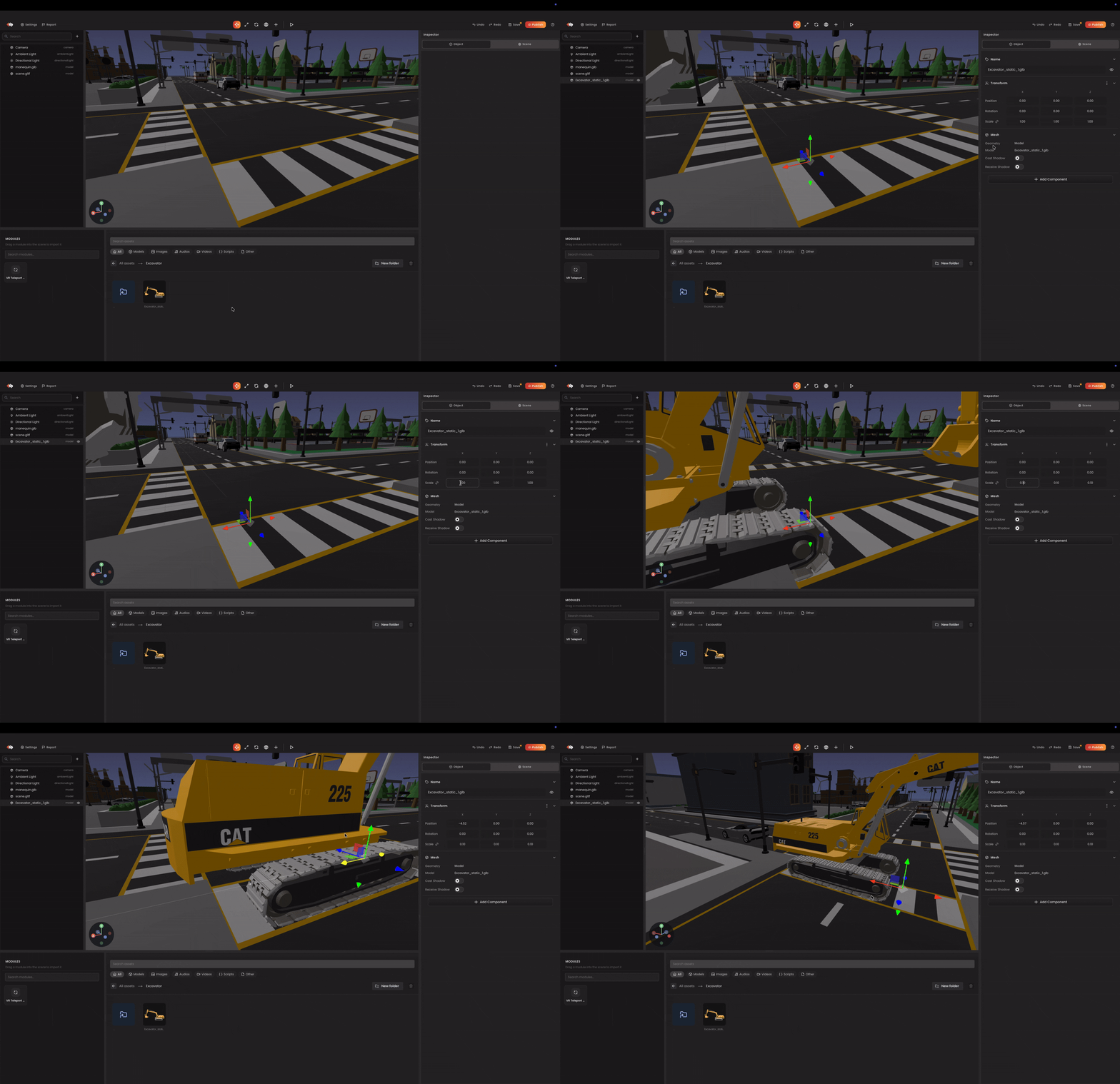
- Click an entity in the viewport or hierarchy to select it.
- Drag the gizmo to move, rotate, or scale (toggle modes from the toolbar).
- Drag in the hierarchy to re-parent.
- Delete removes the selected entity (and its children).
Next
- Editing inspector values - fine-tune components on selected entities.
- Spawning - full reference of every spawnable kind.