

Testing on a Headset
XR projects (VR and mixed reality) are made to run in a headset, so their Preview doesn't play in the editor pane. Instead the editor serves the game on your local network, sends it to your headset, and then shows you what the headset sees, along with its console and stats.
Before you start
- Your headset and your computer need to be on the same Wi-Fi network.
- Use the headset's own browser: Meta Quest Browser on Quest, or Safari on Vision Pro.
Start the preview
Click Preview in the navbar. The pane shows Test on your headset.
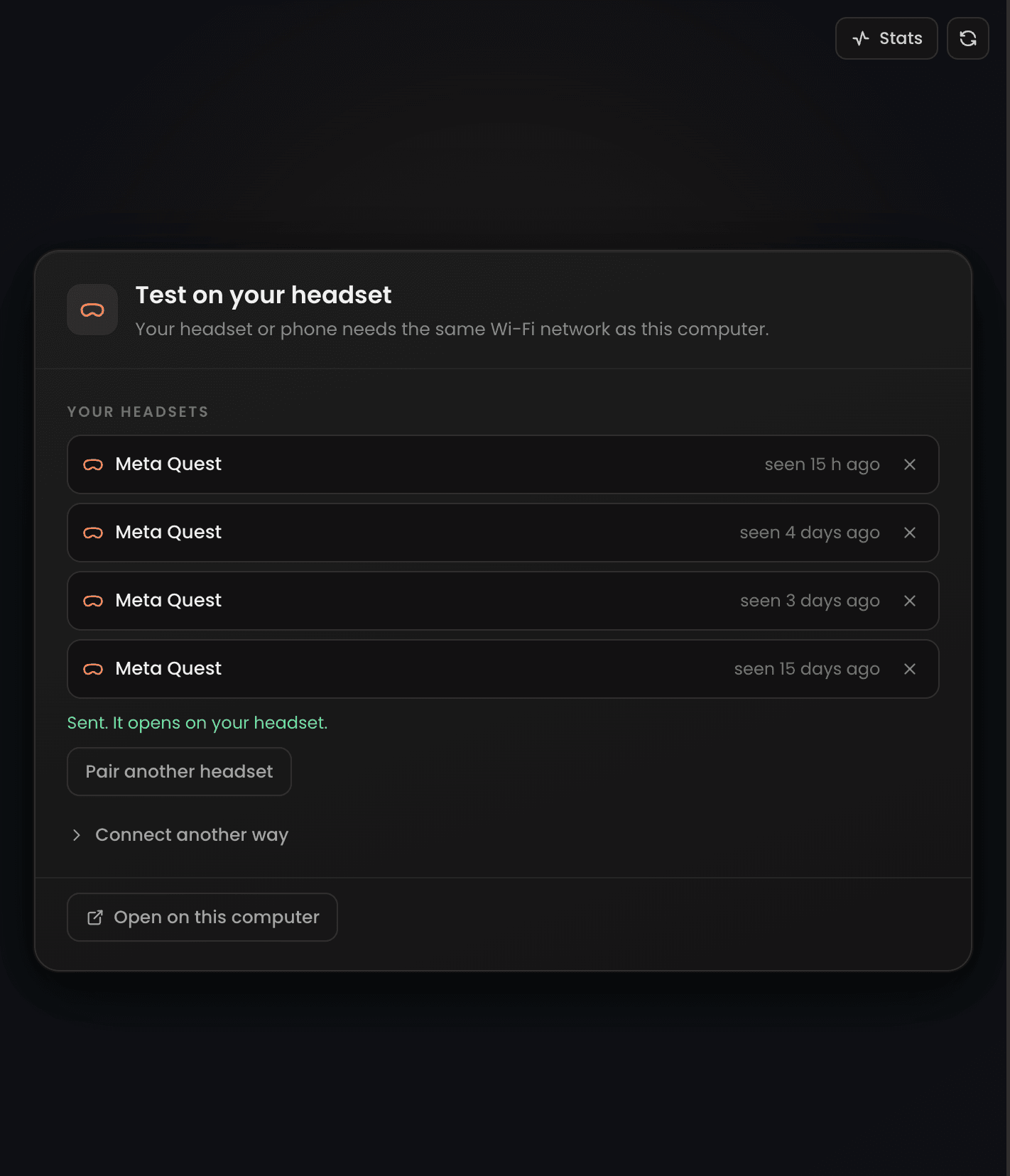
If the card says "No Wi-Fi network found", connect your computer to Wi-Fi first; the headset can't reach it otherwise.
Pair a headset (once)
Pairing is the easiest way in: once a headset is paired, every preview you start opens on it by itself.
- On the headset, open reluspatial.com/headset in the browser. It shows a short code.
- In the editor, type that code into the box under Your headsets and click Pair.
- The card says "Paired. This preview opens on the headset in a few seconds."
Paired headsets are listed under Your headsets with when each was last seen. Click × to remove one, or Pair another headset to add more. After each preview starts, the card confirms "Sent. It opens on your headset."
Connect another way
Click Connect another way to open the game without pairing:
- Open the browser on your headset.
- Type the Address shown (there's a Copy button), or scan the QR code with a phone to test there.
- Accept the one-time "not private" warning. Your computer signs its own test certificate.
- Tap Start, then Enter VR.
Open on this computer opens the game in your desktop browser, which is handy for checking that it loads.
See what the headset sees
Once a headset has the game open, the pane switches to a live view of it. A badge at the top shows the headset, whether it's in VR, and how fresh the picture is, for example "Quest 3 · in VR · 14 fps · 120 ms". The dot turns amber when no picture has arrived for a moment.
In VR the picture is the left eye. Passthrough (the real room in mixed reality) never reaches the editor, so you'll see your virtual content without the room behind it.
If the pane says the headset "has the game open, but its page can't send its picture yet", the project was made before this feature: accept the project update (see Projects), then restart the preview. The headset's console still reaches the editor in the meantime.
Click How to connect to go back to the pairing and address card, and Show the headset to return to the live view.
Update after an edit
The headset doesn't reload when you change the scene. Click Update preview (the circular arrow in the preview controls) to rebuild and reload the page on the headset. If it doesn't reload, refresh it in the headset's browser.
Console errors from the headset
Errors the game logs on the headset come back to the editor. They show in the errors bar above the message box in the Agent tab, for example "The game on the headset logged 2 console errors". Click Attach to message to hand them to the agent. See Errors from your game.
The agent can also read the headset's console and look at its picture itself while it works on your game.
Stats on the headset
Click Stats in the preview controls. The Stats panel in the editor fills with the headset's own numbers, and a small "Relu stats (editor only)" panel appears in the headset's view, just below your line of sight, following your head. FPS on it is green from 70 and amber from 45. Click Stats again to hide both.
Neither panel is part of a published game.
Profile on the headset
To record a whole session and see what slows it down, use Profile build from the Profiler. For XR projects the profiling build is sent to your paired headsets the same way.