

Audio Editor and Recorder
The editor has its own sound tools: an audio editor to cut, level, clean up and add effects to a sound, and a recorder to capture voice lines and sounds with your microphone. Both open over the scene, and everything they save lands in your project's assets.
The audio editor
Open it
- In the Assets tab, right-click a sound and choose Edit audio….
- Select an object with an Audio component and click Edit audio in the inspector. (Test next to it plays the sound.)
The window
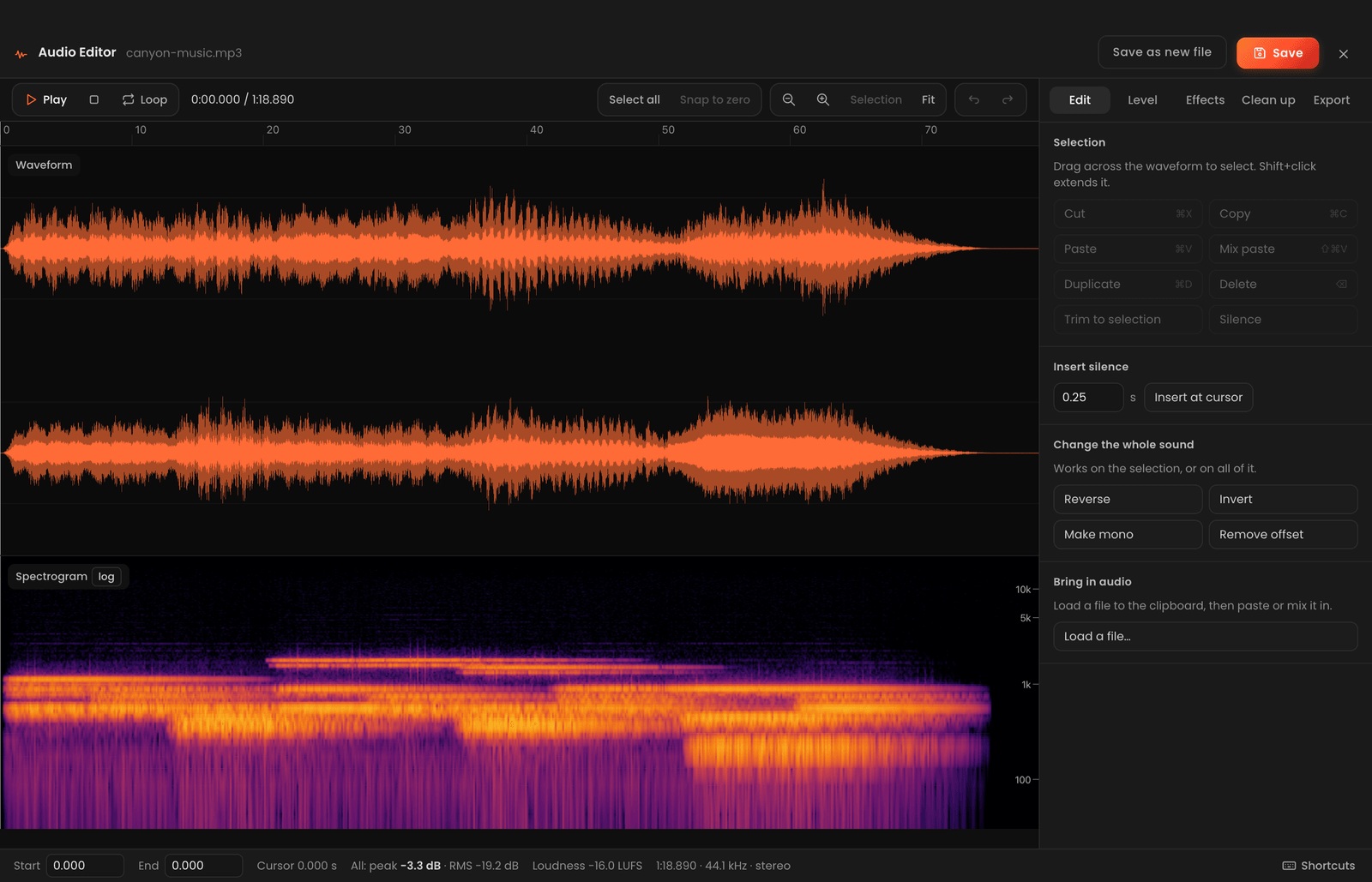
- Header: Audio Editor, the file's name, Unsaved changes when there's something to save, Save as new file, Save and ×.
- Transport: Play (from the cursor, or the selection), stop, Loop (play the selection over and over), the position clock, Select all, Snap to zero (moves the selection's edges to the nearest zero crossings, so cuts don't click), zoom out and in, Selection (zoom to it), Fit (show it all), undo and redo.
- Waveform over a Spectrogram. A warning appears on the waveform if the sound clips.
- Side panel with five tabs: Edit, Level, Effects, Clean up and Export.
- Status bar: the selection's Start and End (you can type them), length, peak and RMS, loudness in LUFS, format, the last message, and Shortcuts.
Drag across the waveform to select. Shift+click extends the selection. Most actions work on the selection, or on the whole sound when nothing is selected.
Edit
- Selection: Cut, Copy, Paste, Mix paste (mixes the clipboard in rather than inserting it), Duplicate, Delete, Trim to selection and Silence.
- Insert silence: a length in seconds, then Insert at cursor.
- Change the whole sound: Reverse, Invert, Make stereo and Remove offset.
- Bring in audio: Load a file… puts another sound on the clipboard, ready to paste or mix in.
Level
- Fade: Fade in and Fade out over the selection, with a Curve.
- Amplify: louder or quieter by a number of dB.
- Normalize: scale so the loudest sample reaches a peak you set.
- Loudness and dynamics: Loudness, Compressor and Limiter.
Effects
Effects are grouped:
| Group | Effects |
|---|---|
| Pitch & time | Change pitch, Change tempo, Change speed |
| Tone | Equalizer |
| Dynamics | Compressor, Limiter, Noise gate, Loudness |
| Space | Reverb, Echo |
| Colour | Modulation, Distortion, Lo-fi |
Click an effect to open it in the side panel. Each has its settings, Presets… and Reset, and a footer with Preview (hear it before applying), Bypass and Apply. Back or Esc returns to the list.
Clean up
Clean a recording: remove hiss and hum first with Noise reduction (it can Use the selection as the noise), then Noise gate, Trim quiet ends and Shorten silences for long pauses.
Export
- What this sound is: set the Type to Voice, Sound effect or Music.
- Optimise for web: cuts rumble, trims silent ends, evens the loudness and holds the peaks, tuned to the type. Music keeps its ends, its bass and its stereo, because a trimmed or faded loop clicks at every repeat. Save then writes a small file.
- Download: Download as WAV.
You can also optimise a sound without opening the editor: right-click it in Assets and choose Optimise for web.
Save
- Save replaces the file. Its first version is kept in
.relu/originals/, so nothing is lost. - Save as new file keeps the original and writes your edit beside it.
Shortcuts
| Key | Action |
|---|---|
Space | Play or stop. |
| Drag | Select. |
Shift+click | Extend the selection. |
Wheel / Shift+wheel | Zoom / scroll. |
Cmd+A | Select all. |
Cmd+X Cmd+C Cmd+V | Cut, copy, paste. |
Shift+Cmd+V | Mix paste. |
Cmd+D | Duplicate. |
Delete | Delete the selection. |
Cmd+Z / Shift+Cmd+Z | Undo / redo. |
Esc | Close an effect, then the editor. |
On Windows, use Ctrl for Cmd.
The recorder
The Record audio window records from your microphone.
Open it
- Add Object → Record audio. When you save the first take, it's placed in the scene as an Audio object.
- On an object's Audio component, click Record. The recording goes onto that component, as long as the same object is still selected.
- In the Assets tab, click the microphone button (Record audio). The new file is shown when you save.
Record a take
- Click Record. The meter shows your input level and the waveform draws as you go.
- Pause and Resume as needed (paused time isn't recorded), or Stop when you're done. A take can be up to 10 minutes.
- Play listens back. Start over throws the take away and records again.
- Give it a Name.
- Save it:
- Save as is saves it without editing.
- Continue opens it in the audio editor to trim and level it, then Save to assets from there.
Recordings are saved as MP3 files in assets/audio/recordings/. If the name is taken, the recorder asks whether to Keep both or Replace it. Closing with a take you haven't saved asks Discard this recording? (Keep it or Discard).
Microphone access
The first time, your system asks whether Relu Spatial may use the microphone. If you said no, the recorder shows "Relu Spatial can't use your microphone." with how to turn it on (on a Mac: System Settings → Privacy & Security → Microphone). If no microphone is connected, it says No microphone found.
Sound banks
A sound bank (.soundbank.json) holds named slots, each with several takes to pick from at random. Double-click one in Assets to edit it. Playing banks from scripts, and the music, voice and effects buses, are covered in Audio mixing and sound banks.
Ask the agent
The agent can analyse a sound (loudness, clipping, silences, noise), edit it (trim, cut, gain, normalise, fades), optimise it, and ask you to record something: it opens the recorder and waits while you record.