

Asset browser
The asset browser at the bottom of the editor lists every file in your project's assets/ folder (models, images, audio, video, and scripts).
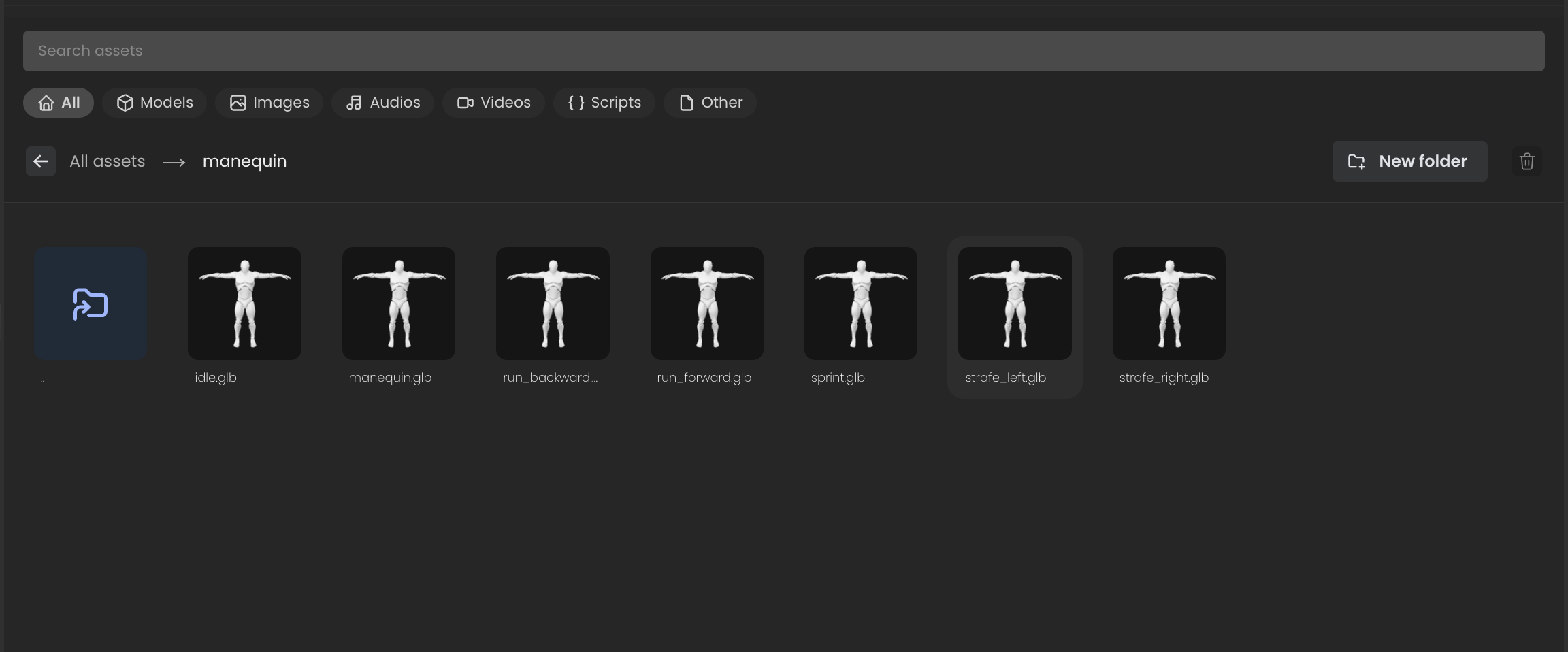
Layout
- Search bar: fuzzy filter across the visible folder.
- Type filters:
All,Models,Images,Audios,Videos,Scripts,Other. - Breadcrumb: shows the current folder path. Click
← All assetsto go up. New folder: creates a folder under the current path.- Trash icon: deletes the selected asset(s).
Importing assets
There are three ways to import:
- Drag a file from your OS into the asset browser. Files are copied into the project's local
assets/folder. - Drag a file directly into the viewport. it imports and spawns a matching entity (model, image, video, audio).
- Right-click → Upload in the asset browser.
Supported formats:
| Type | Formats |
|---|---|
| Models | .glb, .gltf, .fbx |
| Images | .png, .jpg, .jpeg, .webp, .hdr (skybox) |
| Audio | .mp3, .wav, .ogg |
| Video | .mp4, .webm |
| Scripts | .ts (compiled by the editor on save) |
Folders
Folders are real directories under assets/. You can:
- Drag an asset into a folder thumbnail to move it.
- Right-click a folder for rename / delete / new folder.
- Drag a folder onto another folder to nest it.
Using assets in the scene
- Drag a model / image / video / audio onto the viewport to spawn an entity that uses it.
- Drag onto an existing entity row in the hierarchy to assign the asset to that entity's matching component (for example, dropping a
.pngonto an entity with aImagecomponent swaps its image). - Drag a clip onto the Animation panel in the inspector to add it as a clip source.
Scripts
Right-click in the asset browser and pick New Script to create a Behaviour script in place. The editor compiles it and exposes it for attachment via the inspector's Script panel. See Custom Behaviours.